HubSpot integration
HubSpot HTML email templates, checked before they land
Build the email in code or on a canvas, run QA against HubSpot’s rules, and push a coded email template in HubSpot’s Design Manager for every language in one step.
Start Building FreeWhat lands in HubSpot
Publish creates a coded email template in HubSpot’s Design Manager for each language you select. You find it in the emailstitch folder in Design Manager, ready to use for a marketing email. Names follow a pattern such as {Template}_{LOCALE}, so October_update becomes October_update_EN and October_update_DE. You can rename each one in the dialog.
Pushing again overwrites the file with the same name. Connecting takes a HubSpot private app token. Sending, lists and scheduling stay in HubSpot.
Checked against HubSpot before the push
Once HubSpot is your active ESP, the email template checker reads every language with HubSpot’s syntax in mind. A missing unsubscribe tag is a blocker, not a footnote.
- Unsubscribe tag
- Looks for {{ unsubscribe_link }} or {{ unsubscribe_link_all }}. Missing means a blocker. Present but hidden or tiny is flagged as high risk.
- Merge tags
- HubSpot tags such as {{ contact.firstname }} are left alone. A tag written for a different ESP is flagged, because HubSpot would print it as text.
- Dead links
- Every link is requested. HubSpot click-tracking links (hubspotlinks.com and cta-redirect.hubspot.com) are skipped, so tracking does not show up as a false 404.
- Leftover tokens
- A {{locale.*}} or {{theme.*}} token that did not resolve is a blocker. It would reach HubSpot as raw text.
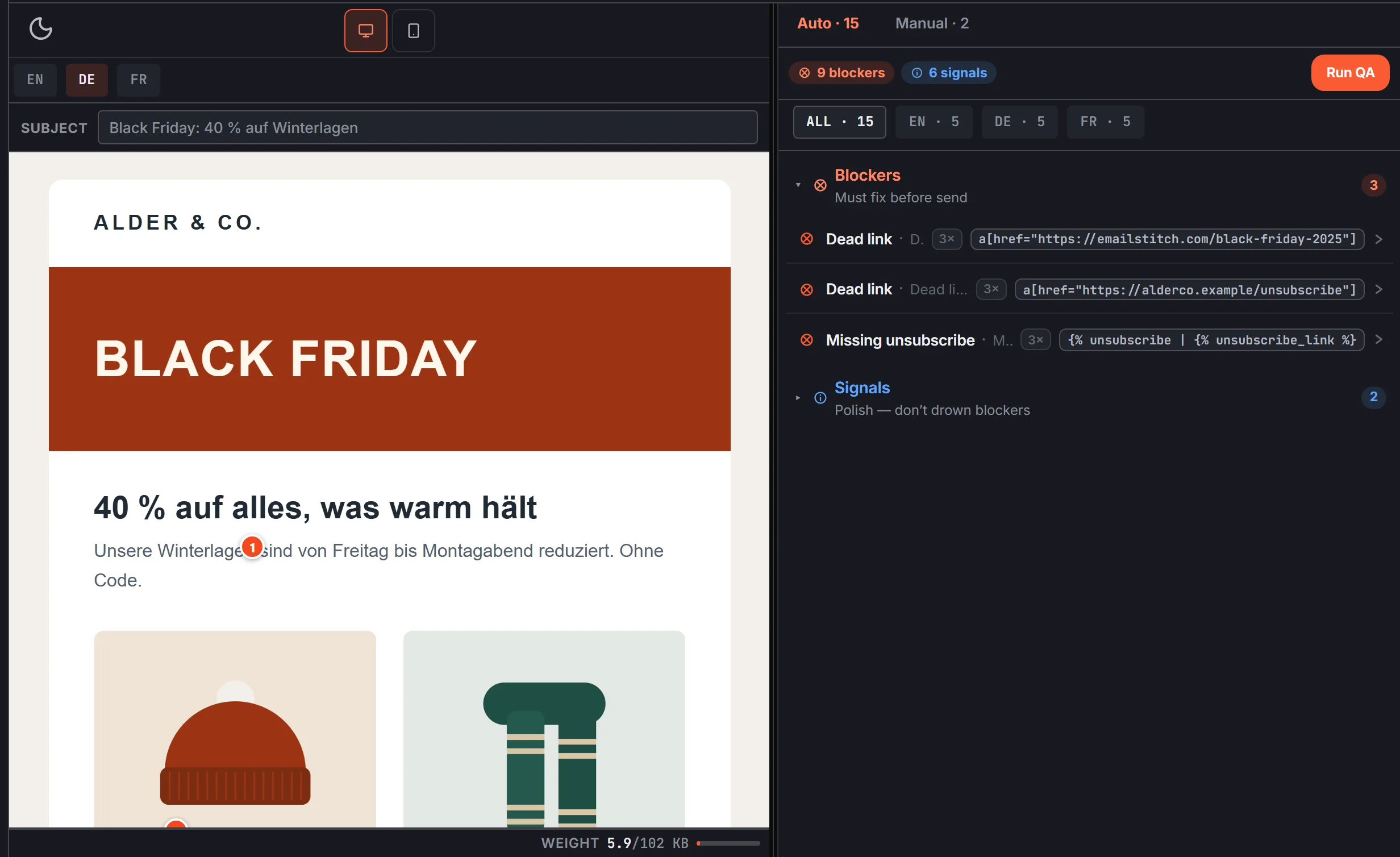
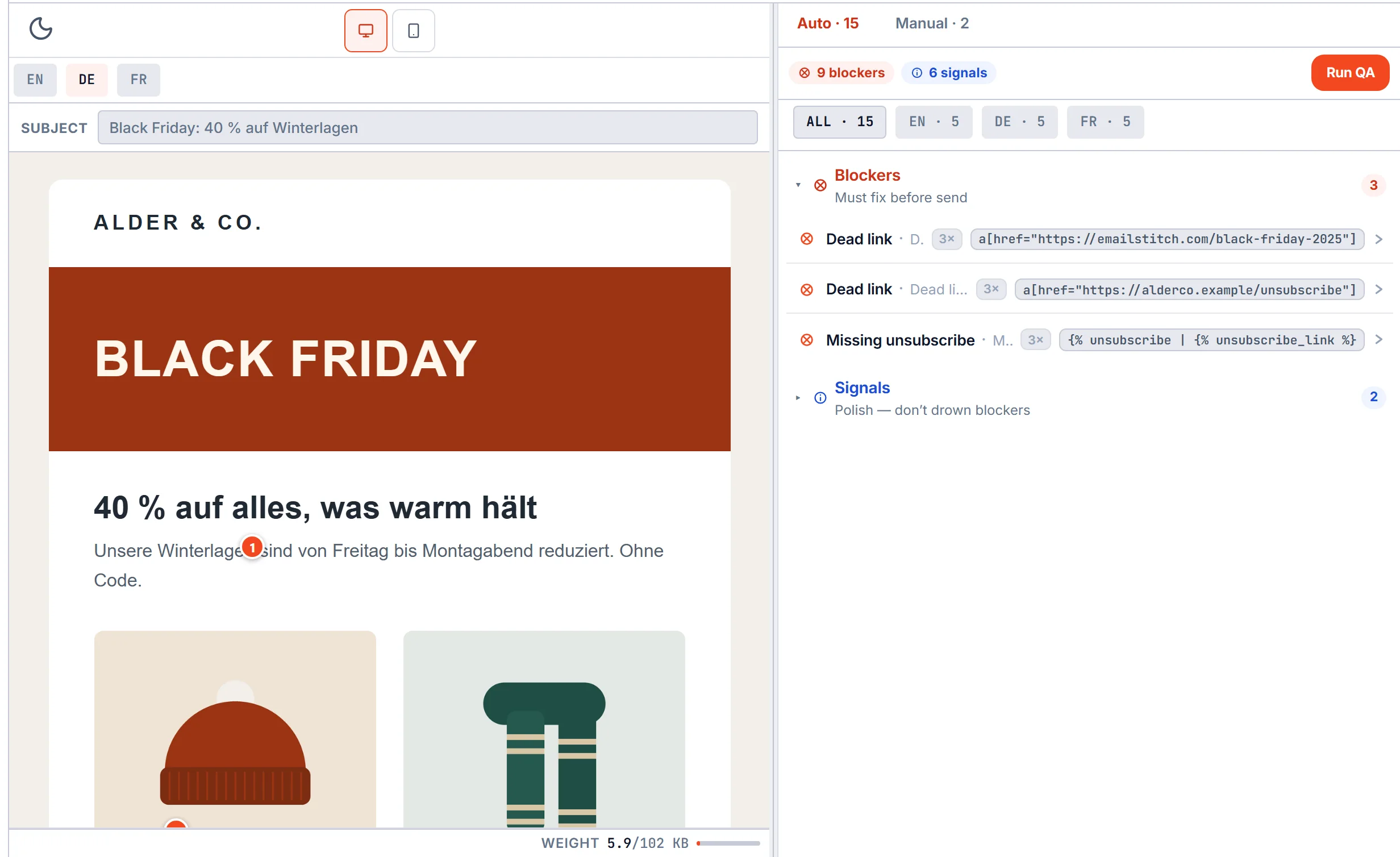
One HTML file, one HubSpot template per language
The layout lives in one Shared HTML file. Copy, links, images and the subject change per language through {{locale.key}} tokens, edited in a grid or imported from Excel. That workflow has its own page: HTML email localization.
Compile turns each language into plain HTML. Publish then sends each one to HubSpot as its own template. Fixing a link in the shared file fixes it in every language on the next push.
The HubSpot requirements are added for you
HubSpot only accepts a coded email template that declares itself as one and carries the CAN-SPAM footer module. The push adds the template annotation at the top, and adds the CAN-SPAM module before </body> if your HTML does not already have it. The rest of your HTML stays as written.
HubL such as {{ contact.firstname }} and {% module %} passes through Compile untouched.
Related
Questions
Where does the template show up in HubSpot?
In Design Manager, in a folder called emailstitch, one file per language. From there it is available when you create a marketing email.
Do I need to add the CAN-SPAM module myself?
No. If the HTML does not contain it, the push adds it before the closing body tag.
What if I am not on HubSpot yet?
Download ZIP gives you the compiled HTML for every language, with nothing EmailStitch-specific inside. Push to any of the six supported ESPs later.
Push your next HubSpot template from one file
Create an account. Shared HTML, translations, QA, and ESP push in one workspace.
Start Building Free