Email Countdown Timer: How to Add One for Black Friday
How to add an email countdown timer to your Black Friday email, and keep it working on phones, in Outlook and in every language.
An email countdown timer is a small moving image that shows how much time is left on an offer. It’s created fresh each time someone opens the email, so every reader sees the real time left at that moment. You make it in a timer tool, paste it into your email once, and give each language its own version.
Countdown timers turn “ends soon” into a number, which is why they show up in so many Black Friday and Cyber Monday emails. They also go wrong more often than the rest of the email: the timer spills off the screen on phones, the German version still says DAYS and HOURS, or the timer keeps counting after the sale ended. Here’s how to add one that works, with a real timer we made for this post.
How an email countdown timer works
The timer isn’t sent with the email. The email only holds a link to the picture, and the picture is created the moment the email is opened. That’s why someone who opens on Tuesday sees two days left, and someone who opens on Thursday evening sees a few hours.
How to add a countdown timer to your email
For this post we made the timer in BrandTimer, our countdown timer tool. It takes a few minutes:
- Pick a design, or paste your website address and let BrandTimer copy your colors and fonts.
- Write the words: the headline above the numbers and the labels under them.
- Set the end date and time zone of your offer.
- Choose what shows after the deadline, for example “The sale has ended”. People open Black Friday emails days later, so this matters.
- Copy the timer and paste it into your email. In Mailchimp, Klaviyo, Brevo, HubSpot, ActiveCampaign or Omnisend you paste it into the block for custom content. If you build the email in EmailStitch, the timer travels with the template when you publish it to your ESP.
Our timer says “Pre-orders close in” and counts down to Thursday at midnight. In the email, the headline above it repeats the deadline in words, so nobody has to rely on the timer alone.
Make sure it fits on phones
A timer picture is often wider than the email itself. BrandTimer adds the right size setting when you copy the timer, but that setting can get lost when someone pastes the timer in a hurry or edits it later. Then the timer spills past the edge of the email, and on a phone the last numbers are cut off.
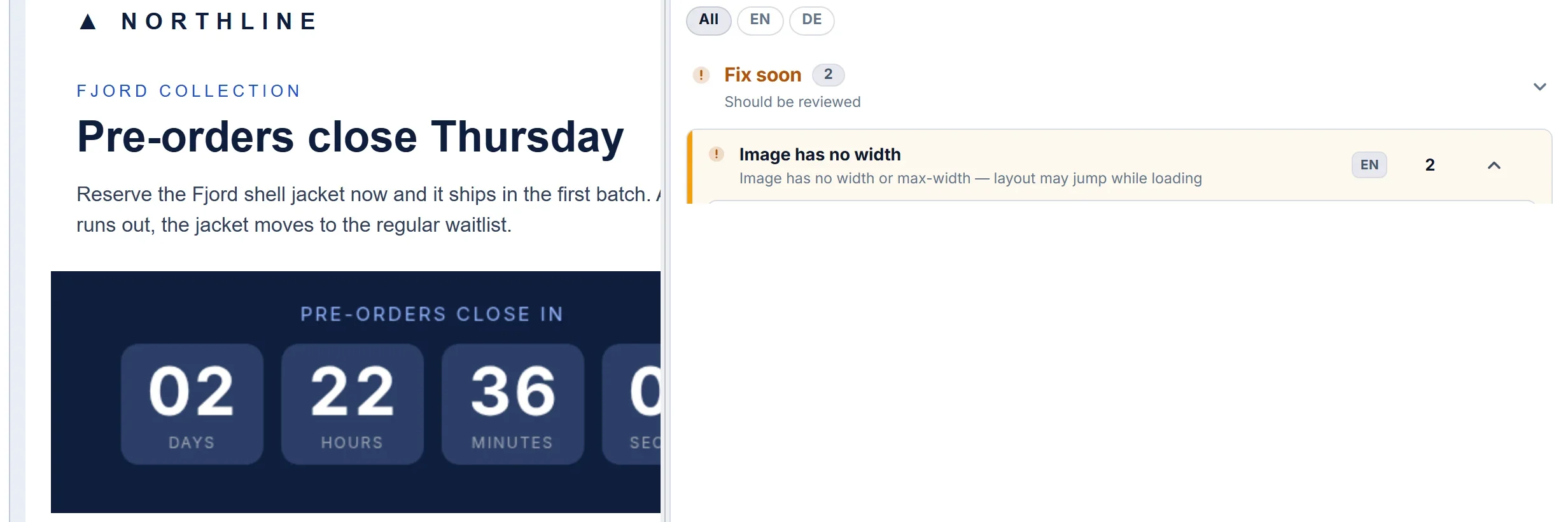
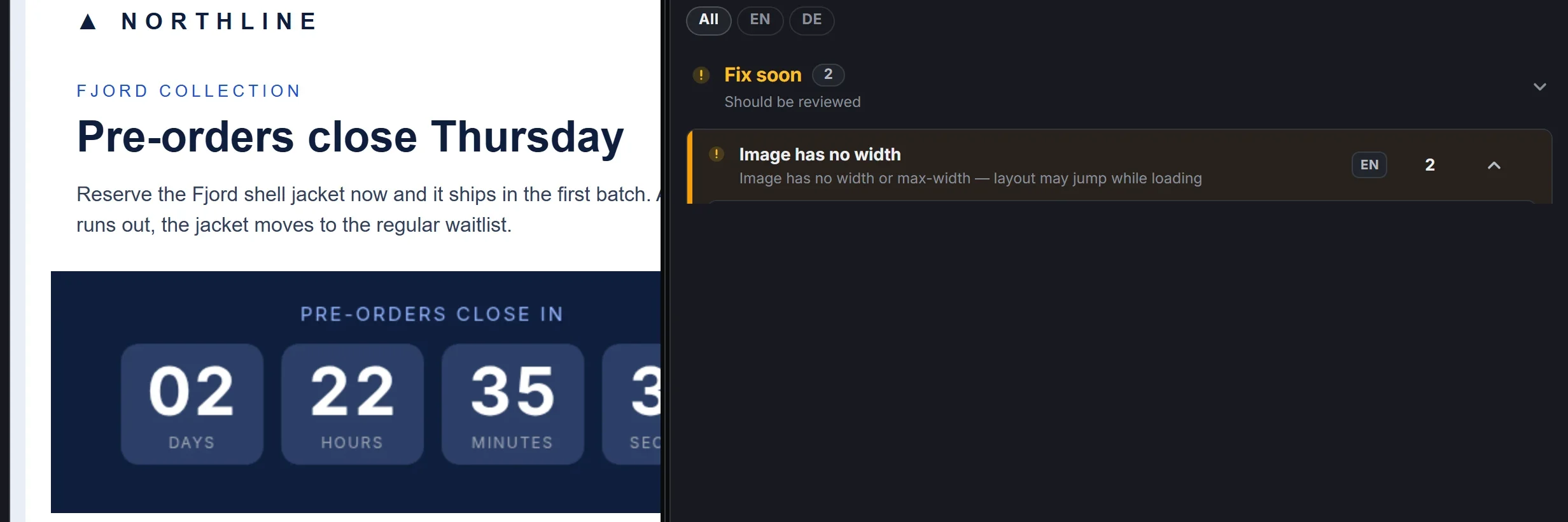
- Always check the email on a phone before you send. The whole timer should be visible without scrolling sideways.
- If the timer is cut off, paste it again from BrandTimer instead of fixing it by hand.
- Keep the short description that comes with the timer. People who have images turned off see that text instead, so make it say the deadline, for example “Sale ends Friday at midnight”.
In EmailStitch, Review flags a timer without its size setting as Image has no width, and a timer without a description as Missing alt text, in every language.
One timer per language
The words on a timer are part of the picture. If you send the same campaign in German, the German email needs its own timer that says TAGE, STUNDEN, MINUTEN, SEKUNDEN. In BrandTimer we made a second timer with the same end time and German words.
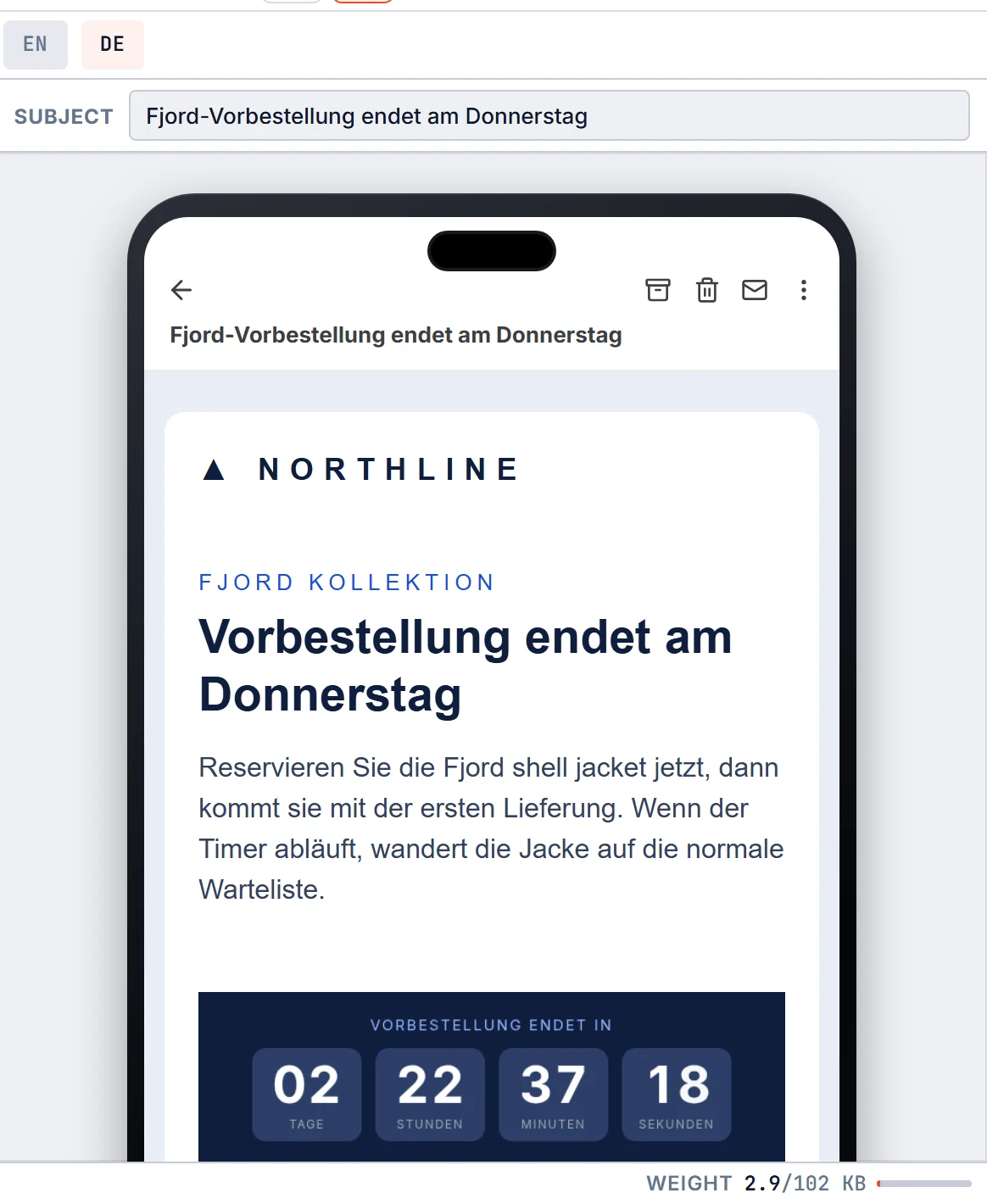
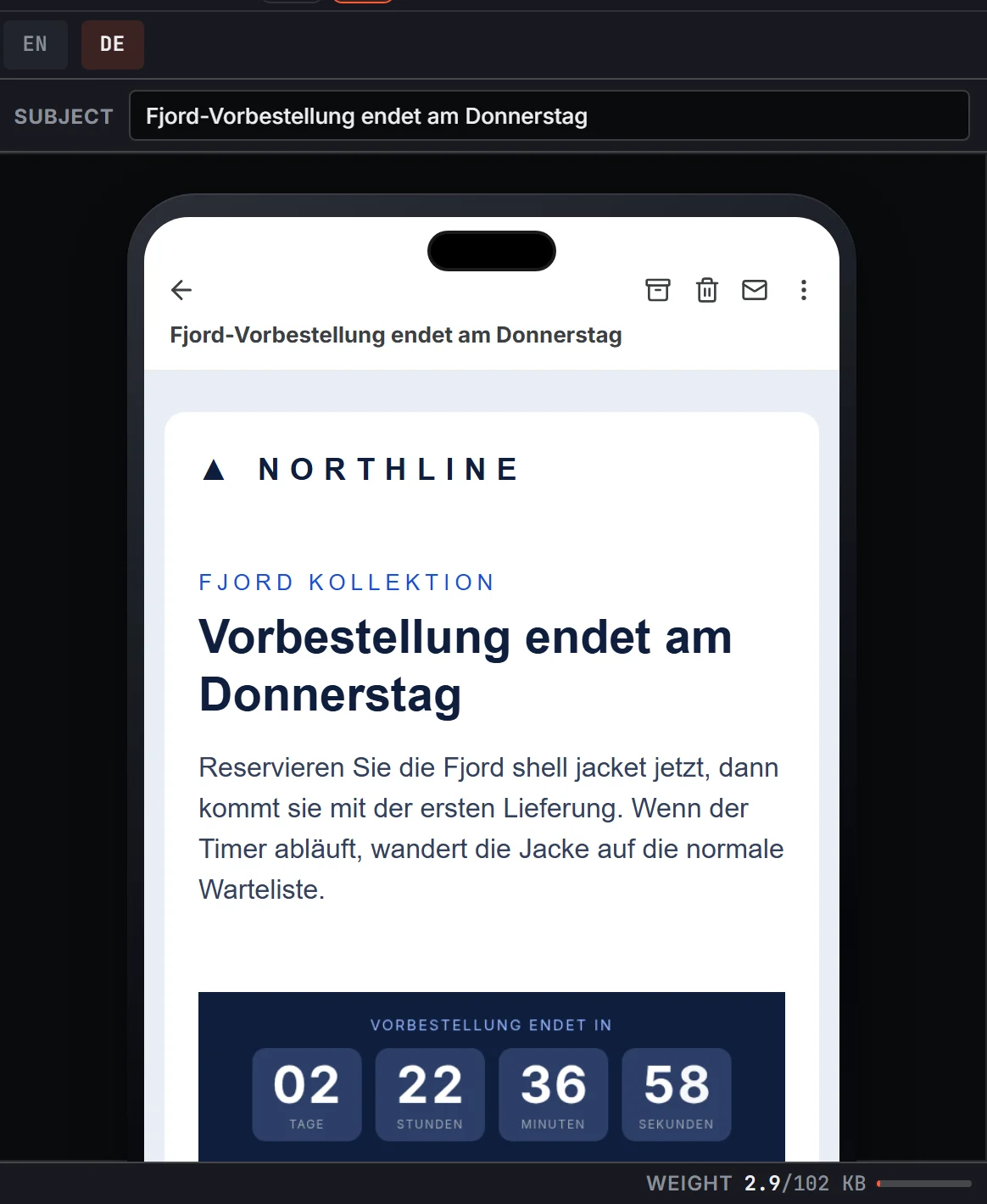
In EmailStitch, each language of an email has its own translations, and the timer is one of them. The English version shows the English timer, the German version shows the German one, and the design of the email stays the same in both.
- Make one timer per language, with the same end time and time zone.
- Translate the short timer description too: “Vorbestellung endet Donnerstag, 5. November, um Mitternacht”.
- Check every language on a phone, not only English. German words are longer.
If you run a Black Friday campaign in several languages, you can build it in EmailStitch for free and check every version before it reaches your ESP.
One deadline for everyone, or one per subscriber
A sale that ends at midnight on Black Friday has one deadline, so one timer works for your whole list. Some offers end at a different time for each person, like a welcome discount that lasts 48 hours. BrandTimer can give every subscriber their own deadline, taken from a date you already store for each contact in your ESP.
What older Outlook shows
Older versions of Outlook for Windows show only the first picture of the timer, so the numbers don’t move. The time shown is still correct for the moment the email was opened. That’s one more reason to write the deadline in the email text as well.
Before you send
- The end date and time zone match the real end of the offer in every country you send to.
- Every language has its own timer, with translated words.
- The whole timer fits on a phone screen.
- Clicking the timer takes people to the offer.
- You’ve checked what the timer shows after the deadline.
Timers are one of the checks in the Black Friday email checklist.